Routines
Routine Reminders: Set a Cue You Can Act On
Set routine reminders with a clear first action and time to begin. Follow Skye's Push setup, check a missing alert, and revise reminders you keep dismissing.
Read the storyBuild everyday routines with a timer for each task. Pause, skip, or change the plan as you go.
Your morning, your focus time, your wind-down. Find a rhythm that feels like you.

Your next small step.
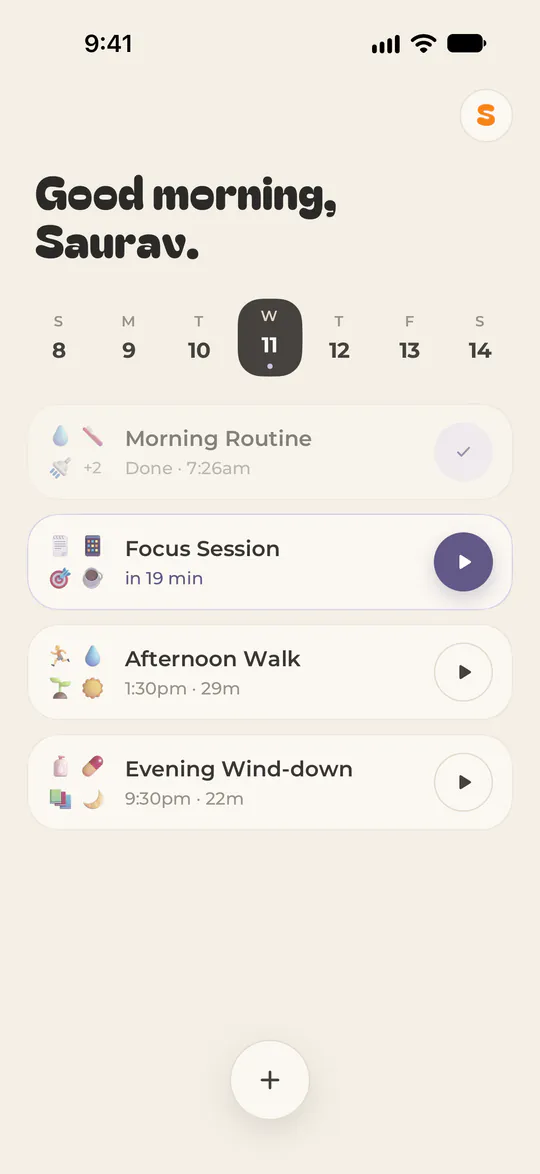
Not a whole new you. Just a little more space for the things you want to do.
A morning stretch, a skincare routine, or a little time to focus. Put your steps in one place and make a routine that fits your life.
Get Skye freeUnlimited free routines. Choose System, Light, or Dark appearance in Settings.
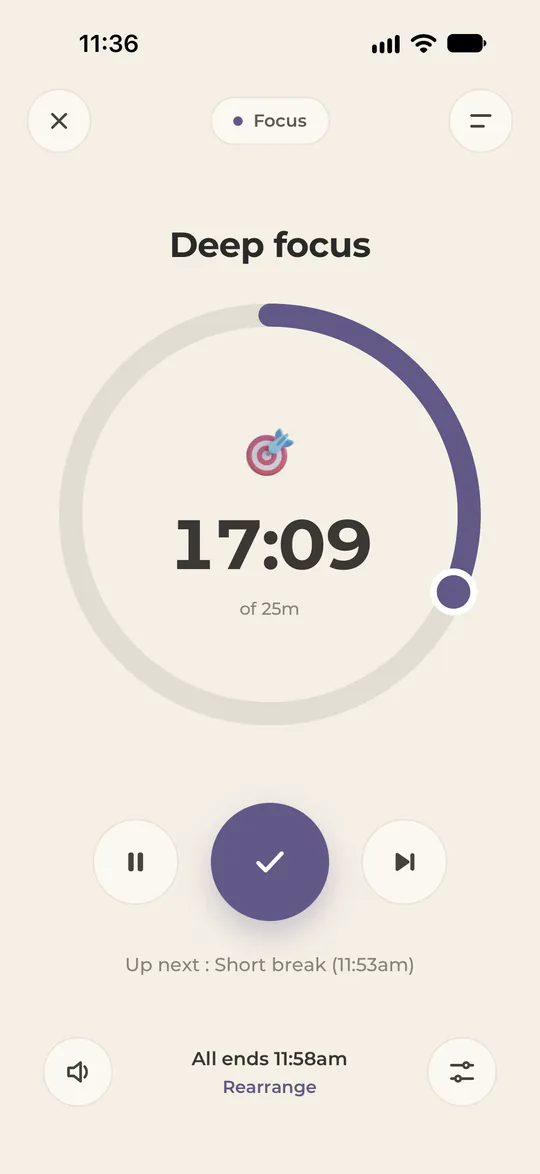
Give each step its own time, then press play. Skye guides you through your routine so you can focus on the thing in front of you.
Get Skye freePause, skip, or mark a task done. See what comes next and when it all ends.
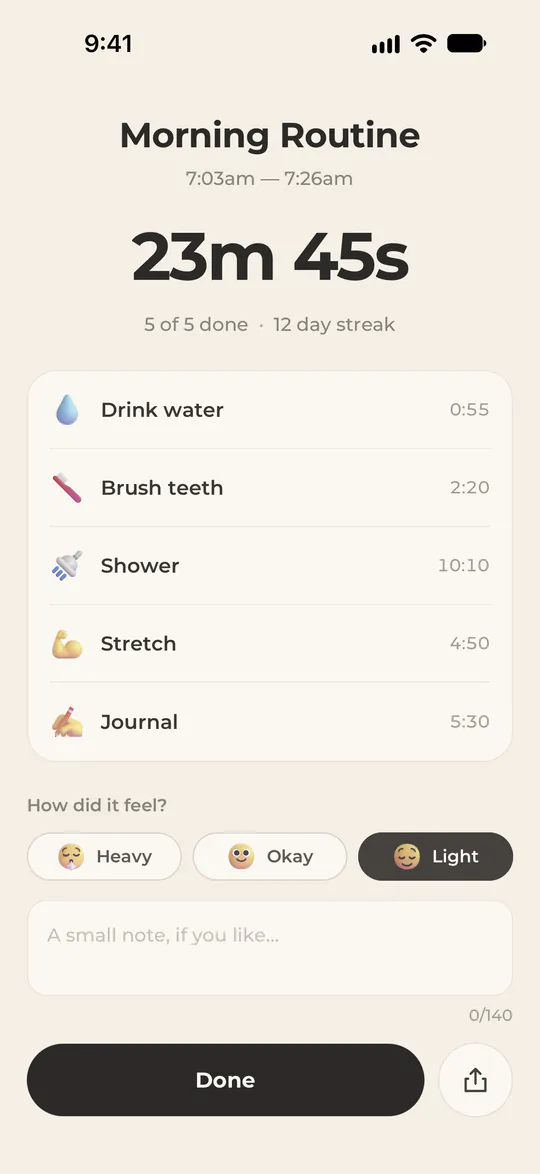
Review each task’s time, your total routine time, and your streak. See how many tasks you finished and choose how it felt.
Get Skye freeA record of your routine, not a score for your day.
You do not have to do it all at once. Just start with one routine.
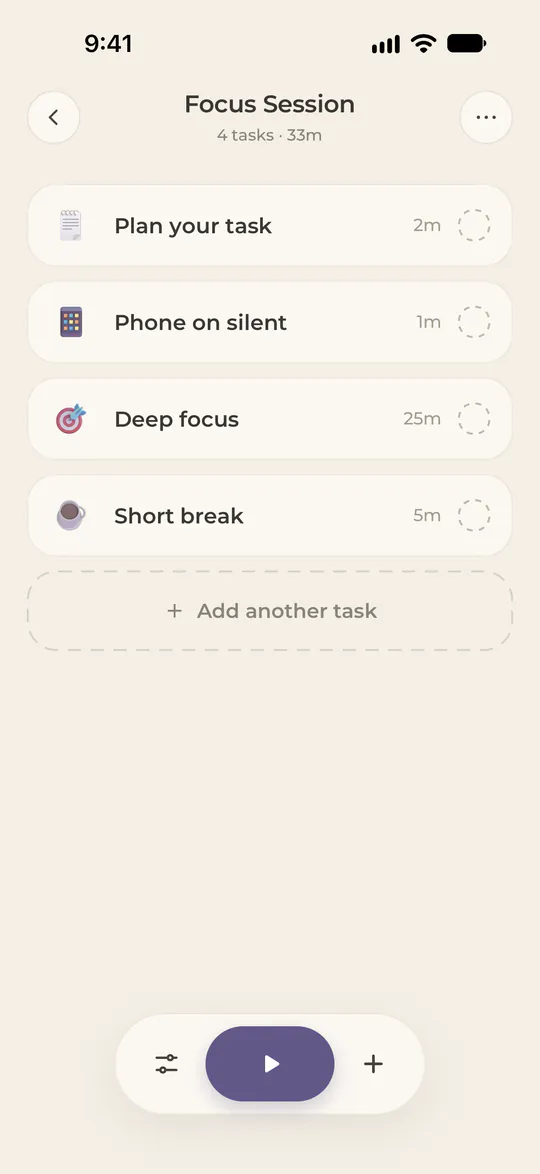
Add the steps that matter to you. Give each one its own time.
Press play. Your timers guide you from one small task to the next.
Finish your routine. See your progress. Come back and keep growing.
Set routine reminders with a clear first action and time to begin. Follow Skye's Push setup, check a missing alert, and revise reminders you keep dismissing.
Read the storySkye is free. Create unlimited routines, with all features included and no paywalls.
Tap + on Home, name your routine, and choose its repeat schedule. Choose Time for a set start time or Anytime to start when ready. Save the routine, then add tasks with a duration for each one.
Each task in a routine has its own timer. The app guides you through tasks sequentially, with options to pause, skip, or adjust time as needed.
Routine names, task details, and session records are stored locally. Skye does not sync routines through a cloud account. App usage analytics are separate from those local records; read the privacy policy for details.
Tap the profile button at the top right of Home to open Settings. Under APPEARANCE, choose System, Light, or Dark. System follows your system appearance. Your choice takes effect at once and is saved for the next time you open Skye.
Skye has 15 app language options: English, Spanish, Brazilian Portuguese, French, German, Italian, Russian, Turkish, Arabic, Indonesian, Thai, Japanese, Korean, Simplified Chinese, and Traditional Chinese. Open Settings from the profile button on Home, then choose Language. Select a language or System default. Your routine and task names stay as you wrote them.
Turn the things you want to do into a routine you can follow. Start with one small step, and let Skye guide the next.
Made for your everyday.